Clean up a voice recording
This guide takes a voice recording with background noise and long pauses and turns it into a clean, even file. It uses five tools in this order: Denoise, Strip Silence, Equalizer, Compress and Volume. It takes a few minutes, everything happens on your phone, and every step can be undone.
You need: ZEEP on an Android phone and a voice recording (or record one in the app).
1Add your recording
- Open ZEEP. You start on the Editor tab.
- Tap the + button at the bottom right.
- Tap Record to record now, or Audio File to pick a recording from your phone.
- You should see your recording as a clip on the timeline.
2Remove the background noise
- Tap the clip on the timeline to select it.
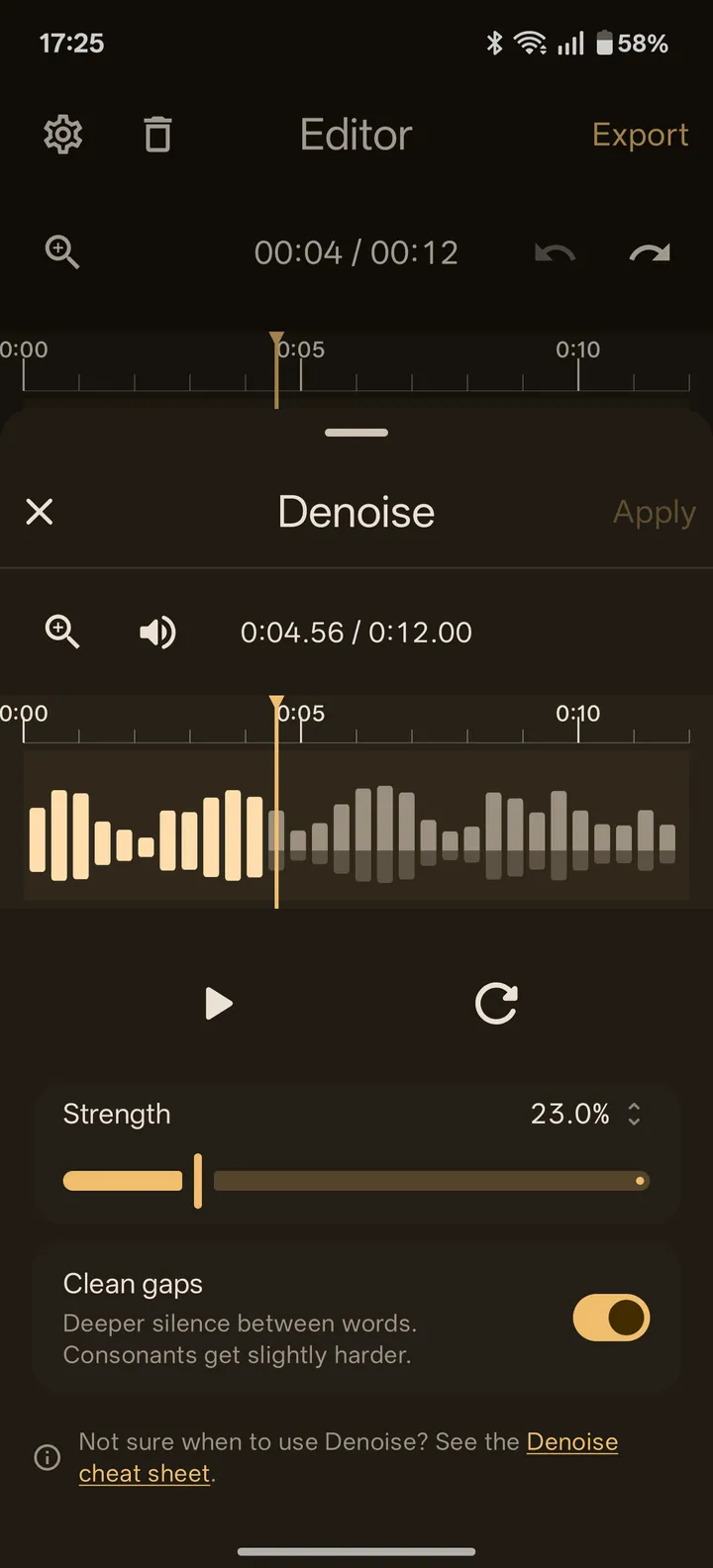
- Tap Denoise.
- Tap play. Drag Strength to the right until the noise drops away.
- You should hear the voice stay while the fan, traffic or hiss behind it gets quieter.
- If the voice starts to sound watery or robotic, drag Strength back a little.
- Leave Clean gaps on. If words start to sound cut off, turn it off.
- Tap Apply.
3Cut the long pauses
- With the clip still selected, tap Strip Silence.
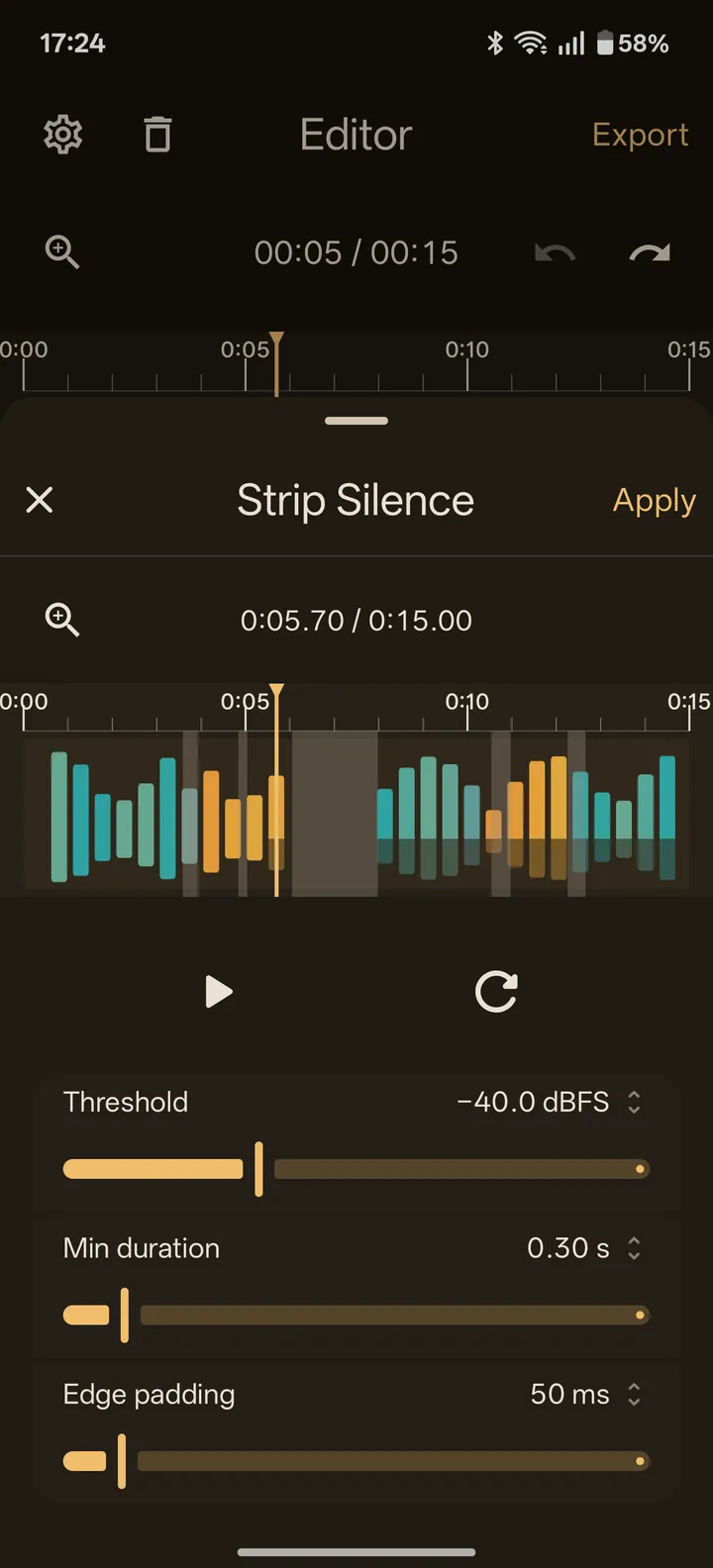
- Look at the waveform. The shaded areas are the pauses that will be removed.
- Too much shaded? Drag Min duration to the right so only longer pauses count.
- Words starting too abruptly? Drag Edge padding to the right.
- Tap play to check, then tap Apply.
4Clear up the tone and remove hum
- Tap Equalizer.
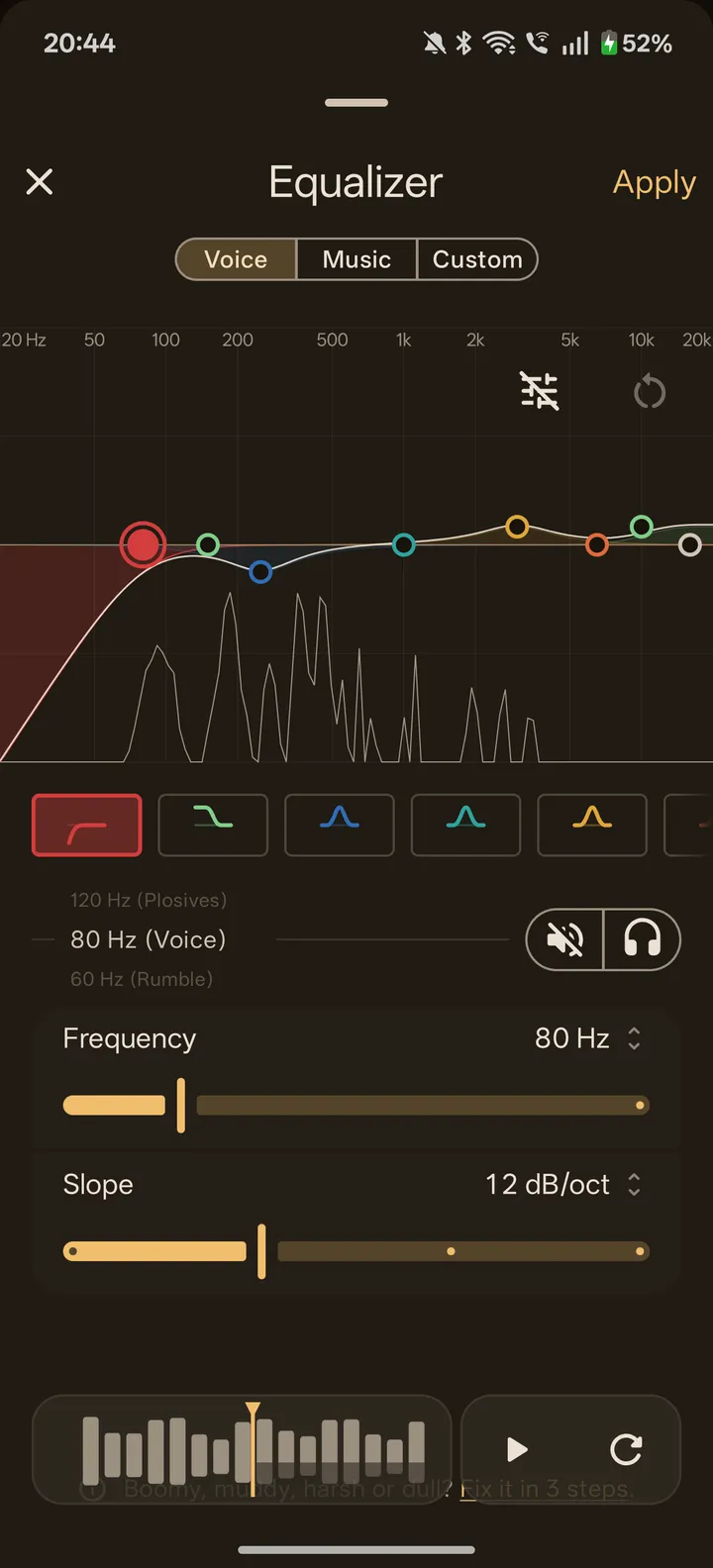
- Tap Voice at the top. This removes the rumble below the voice.
- Tap play. Hear a steady low buzz? Tap a bell band that is still on the middle line.
- Roll its wheel to Hum (EU) in Europe and most of the world (50 Hz power), or Hum (US) in North America (60 Hz power).
- Tap the bypass icon on the graph to compare. You should hear the buzz gone and the voice unchanged. If you can't hear a difference, undo the band.
- Tap Apply.
5Even out loud and quiet words
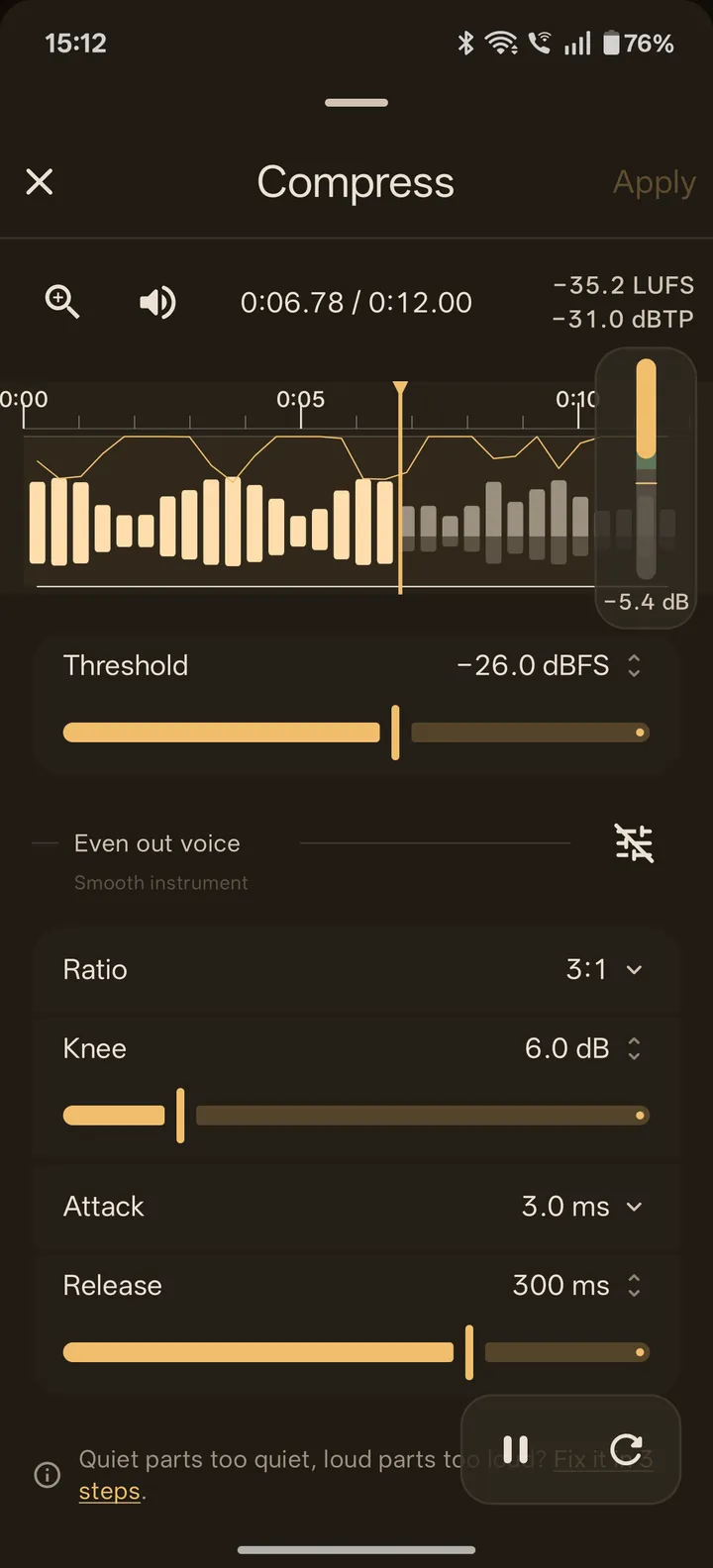
- Tap Compress. It opens on Even out voice, the right preset for talking.
- Tap play and watch the bar with the green zone at the right edge of the waveform. That is the gain reduction meter.
- Drag Threshold until the meter stays in the green on the loud words.
- You should hear quiet words move closer to loud ones. The whole clip also gets quieter. That's normal; the next step fixes it.
- Tap Apply.
6Set the loudness
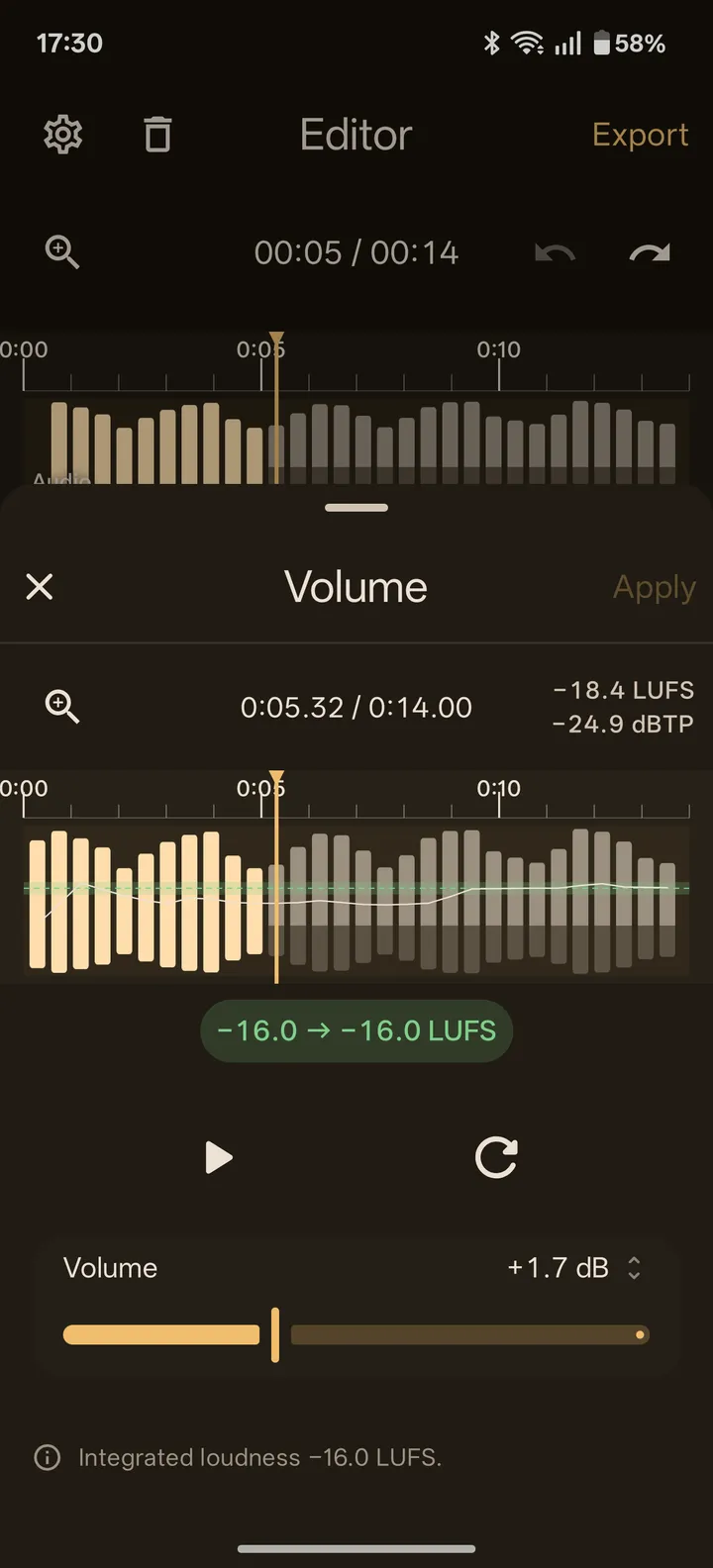
- Tap Volume.
- Tap the green Match button under the waveform. It shows your clip's loudness and the target, -16 LUFS unless you changed it.
- You should see the Volume slider move and the readout land on the target.
- Tap Apply.
7Export
- Tap Export at the top right.
- Type a name and tap Export. The file goes into your Library as FLAC.
- Open the Library tab and tap your file.
- Tap Share to send it to an app, or Save to device to put it in a folder. Pick MP3 if you need a small file, WAV or FLAC if you want full quality.
What this does not do
- Denoise is for voice. On music or sound effects it damages the sound; use the Equalizer's Hiss, Hum or Rumble picks instead.
- Echo and room reverb stay. Denoise treats them as part of the voice.
- Clicks and pops are too short for Denoise. Cut them out with Trim & Cut.
- Audio that clipped while it was recorded stays clipped. ZEEP marks it on the waveform, but it can't rebuild the flattened peaks.