Cut and trim audio
This guide shows how to trim the start and end of a recording, cut out a part in the middle, split a clip into pieces, and join two files into one. Nothing is lost while you work: every removed part can be brought back, and every step can be undone.
You need: ZEEP on an Android phone and an audio file.
1Open your audio
- Open ZEEP. You start on the Editor tab.
- Tap the + button at the bottom right, then Audio File, and pick your file.
- You should see it as a clip on the timeline.
- Tap the clip to select it.
2Trim the start
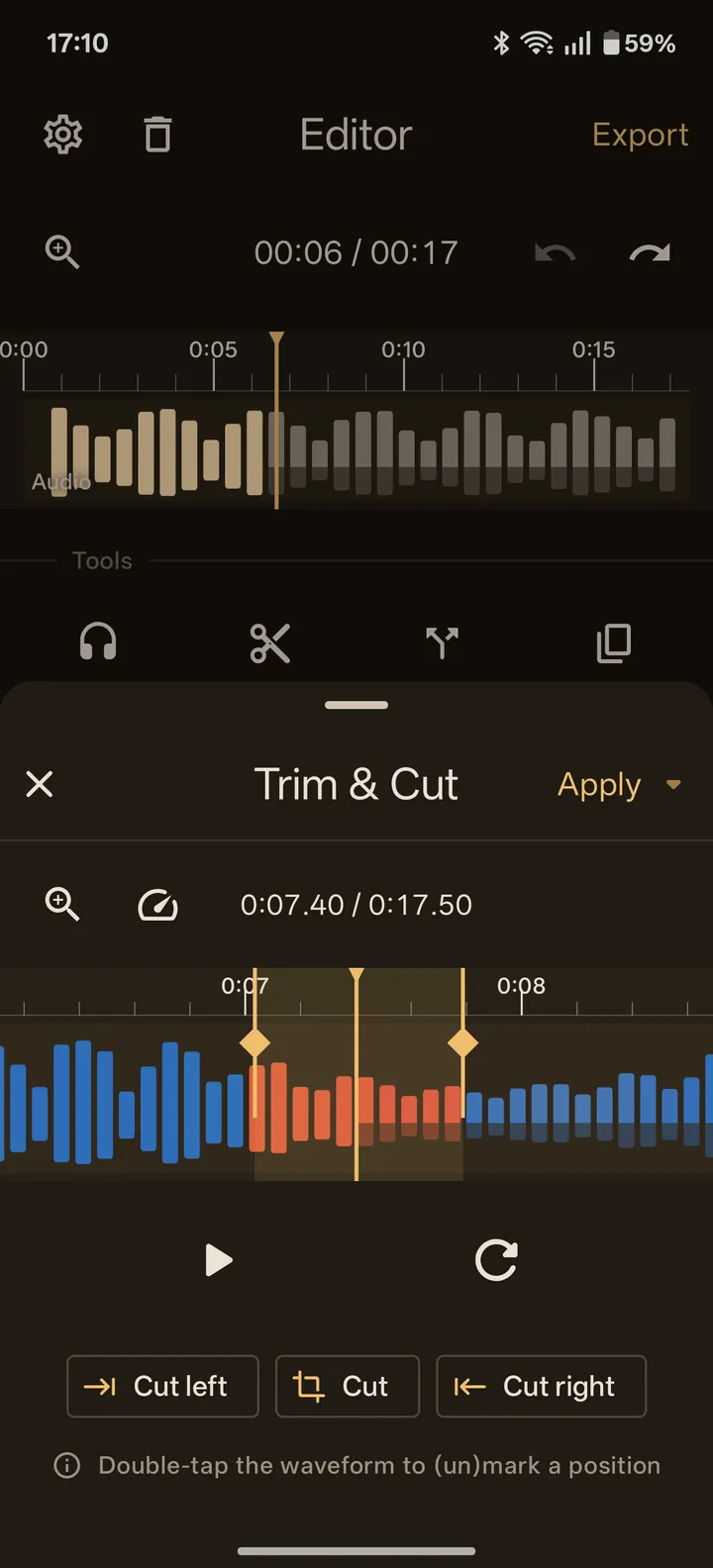
- Tap Trim & Cut.
- Tap play and stop just before the first sound you want to keep.
- Double-tap the waveform at that spot. A mark appears.
- Tap play again so the playhead moves past the mark.
- Tap Cut left. Everything before the mark is removed.
Need more precision? Tap the gauge icon and slow the preview down. It only changes how fast you listen, not the clip. You can also pinch to zoom in on the waveform.
3Trim the end
- Play until just after the last sound you want to keep, and double-tap to add a mark.
- Make sure the playhead is before that mark.
- Tap Cut right. Everything after the mark is removed.
4Cut out a part in the middle
- Double-tap at the start of the part you want to remove.
- Double-tap at its end.
- Move the playhead between the two marks.
- Tap Cut. The part disappears and the audio closes up around it.
- Tap play over the cut. You should hear no click at the join; ZEEP smooths every edit point.
5Changed your mind? Restore it
- Find the seam where the part was removed. It has a restore button.
- Tap it. The removed part comes back.
This works later too: reopen Trim & Cut on the clip and every removed part is still there to restore.
When the clip sounds right, tap Apply.
6Split a clip into pieces
- Touch and hold Split. The Split into sections sheet opens.
- Double-tap the waveform wherever you want a split. The badge shows how many clips you'll get.
- Tap a piece and tap Focus to hear it on its own.
- Tap Delete on a piece you don't want. Restore brings it back.
- Tap Apply. Each piece is now its own clip on the lane.
To split once at the playhead, just tap Split.
7Join two files into one
- Tap your clip to select it.
- Tap +. In the menu that opens, switch from New lane to Append to lane.
- Tap Audio File and pick the second file. It lands right after your clip on the same lane.
- Select the second clip and tap Join in Arrange clips. The two become one clip.
- If ZEEP says the clips carry different settings, tap Commit and join.
8Export
- Tap Export at the top right, name the file and tap Export.
- Open the Library tab, tap the file, and tap Share or Save to device.
- Pick the format: MP3 for a small file, WAV or FLAC for full quality.
What this does not do
- Trim & Cut removes time. It does not make a part quieter; use Volume or a Fade for that.
- Join works on neighbors on the same lane. To play two files at the same time, keep them on separate lanes instead. See the workflow.
- Splitting and cutting don't fix clicks that are in the recording itself between your edits. Mark the click and cut it out like any other part.