Record, edit and export on lanes
A ZEEP session is a timeline of lanes. Each lane holds as many clips as you put on it, and every lane plays together. You add audio, arrange and edit clips, and export the result. All of it is in the free editor, and it all runs on your phone.
1Add audio
Tap + in the editor to add audio:
- Record: records straight into the session at 48 kHz, in stereo when your mic delivers it. Pause and resume as often as you like; the take survives until you save or delete it.
- Audio File: imports almost any audio format.
- Video File: imports the sound from a video.
- From Library: brings back anything you recorded, imported or exported before.
Once the session has audio, a switch in the + menu decides where new audio goes: New lane puts it on a new lane at the playhead, Append to lane puts it right after the last clip on the selected clip's lane.
2Arrange on lanes
- Tap a clip to select it. Every tool works on the selected clip.
- Touch and hold a clip and drag it along its lane or onto another lane; a live preview shows where it lands.
- Pinch to zoom, swipe to move along the timeline.
- Split a clip, Join neighbors back into one, Duplicate onto a new lane, Mute a clip to hear the session without it.
A 30-clip session plays back smoothly.
3Edit with instant preview
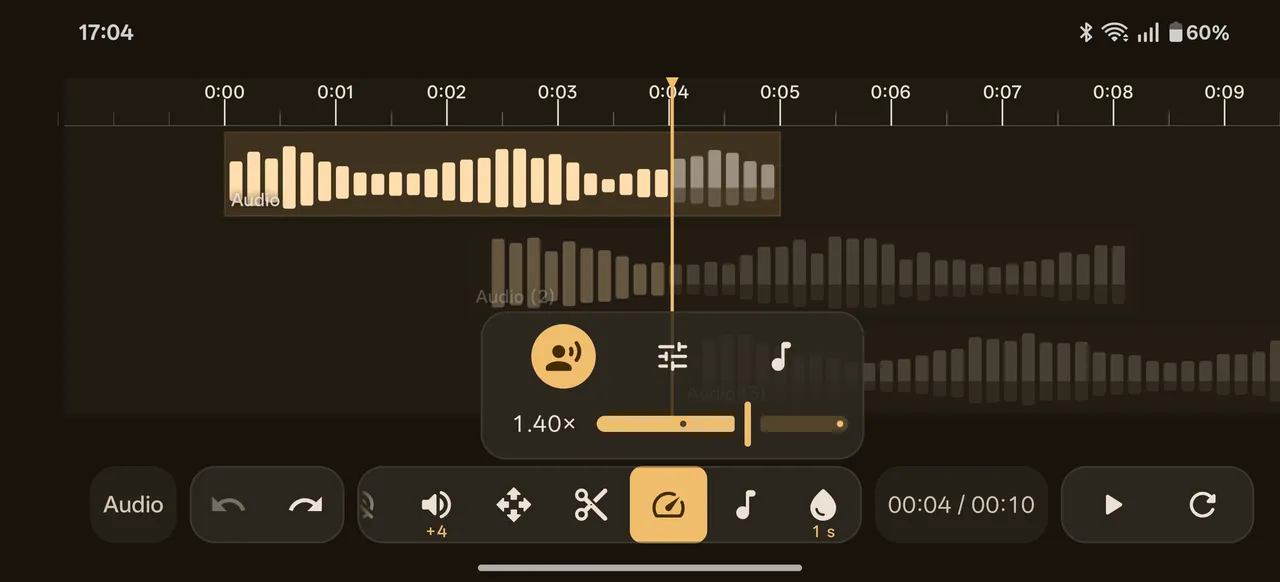
Effects play back as you change them. Drop the speed, add a fade, pull a hum out with the Equalizer: you hear it right away, on any length of file, with nothing to render first. Nothing you do is destructive. Every step can be undone and redone, and each tool tile shows its current value, so you can read a clip's settings at a glance. When a clip carries a lot of live effects, Commit bakes them into the audio and keeps playback light. Every tool
Turn the phone sideways for the landscape view: the timeline takes the whole screen and the quick tools sit in one strip under it.
4Learn as you go
You don't need to know audio terms to get a good result.
- Cheat sheets for Equalizer, Denoise and Compress start from the problem you hear ("Quiet parts too quiet, loud parts too loud?") and give you three steps.
- Presets and quick picks have plain names: Even out voice, Tame peaks, Hum (EU), Mud, Air.
- Spectral colors show where the sound sits: a voice lights up amber, hiss red, while steady background stays gray.
- The loudness explainer in editor settings covers LUFS, dBFS and dBTP in plain words.
5Export
Tap Export, name the file, and ZEEP saves it into your Library as FLAC, so nothing is lost on the way out. From the Library, Share it to any app or Save to device into any folder, as MP3, M4A, WAV, FLAC or the original file. MP3 and M4A come in Standard, High and Best quality.
The Library plays your files in the background, with lock screen controls, and keeps a Trash you can restore from.