Every tool in ZEEP
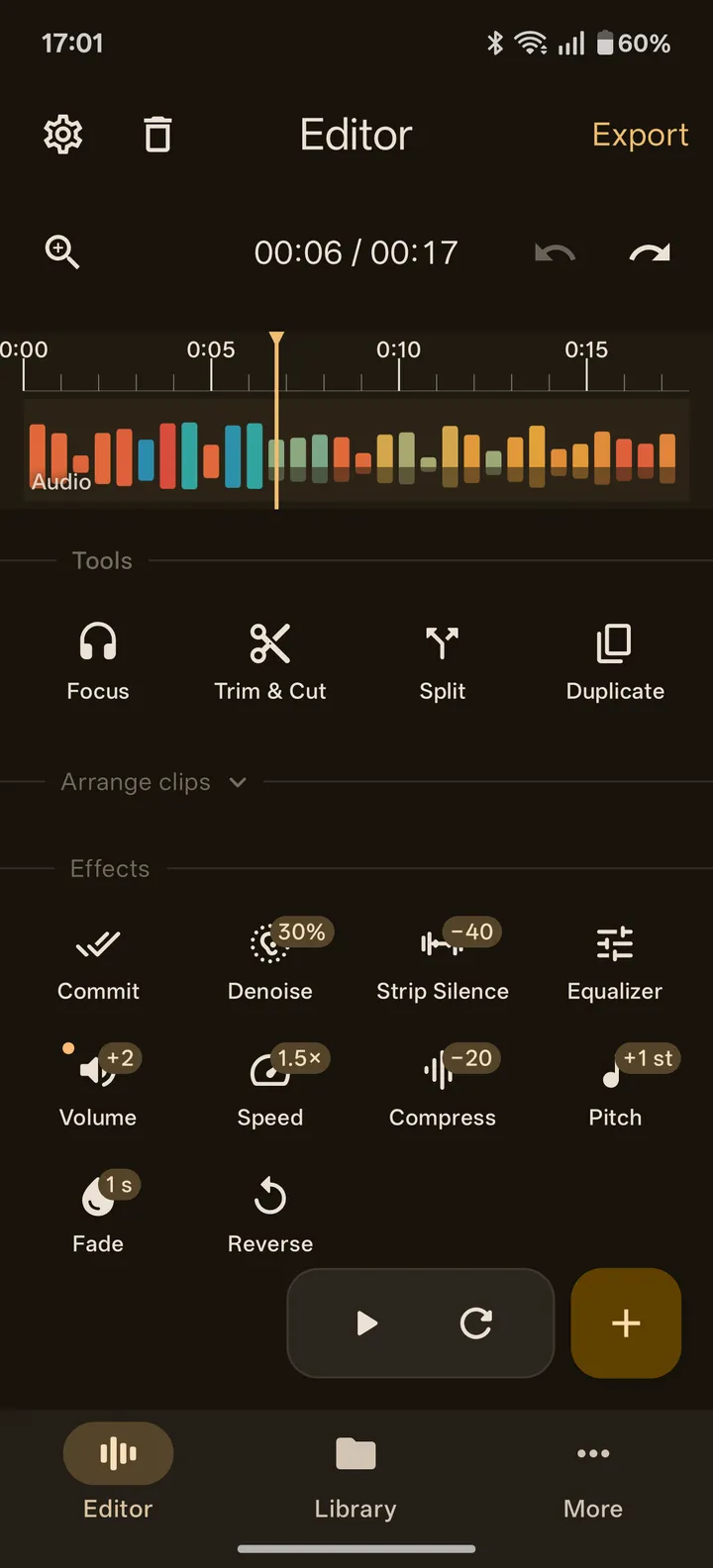
ZEEP has 18 clip tools, and all of them are in the free editor. Each one works on the clip you select. Effects (Denoise, Equalizer, Compress, Volume, Speed, Pitch, Fade) are non-destructive and play back as you change them; you can undo and redo every step. This page is the cheat sheet: what each tool does, when to reach for it, and the details that make it easier on a phone.
At a glance
| Spec | Value |
|---|---|
| Internal processing | 32-bit float, 48 kHz, stereo |
| Output protection | Always-on true-peak limiter with a -1 dBTP ceiling |
| Edit seams | An engine-level fade removes the click at every cut |
| Loudness metering | ITU BS.1770 LUFS (short-term line, integrated readout) and true peak in dBTP |
| Recording | 48 kHz, 32-bit float, stereo when your mic delivers it |
| Import | Almost any audio format, and the audio track of a video file |
| Export from the editor | Into your Library as FLAC (lossless) |
| Share or save from the Library | MP3 at 128, 192 or 320 kbps; M4A (AAC) at 128, 192 or 256 kbps; WAV (16-bit); FLAC; or the original file |
| History | Undo and redo for every step, with a list of named steps |
| Android | Android 9 or newer, phones and tablets |
Trim & Cut
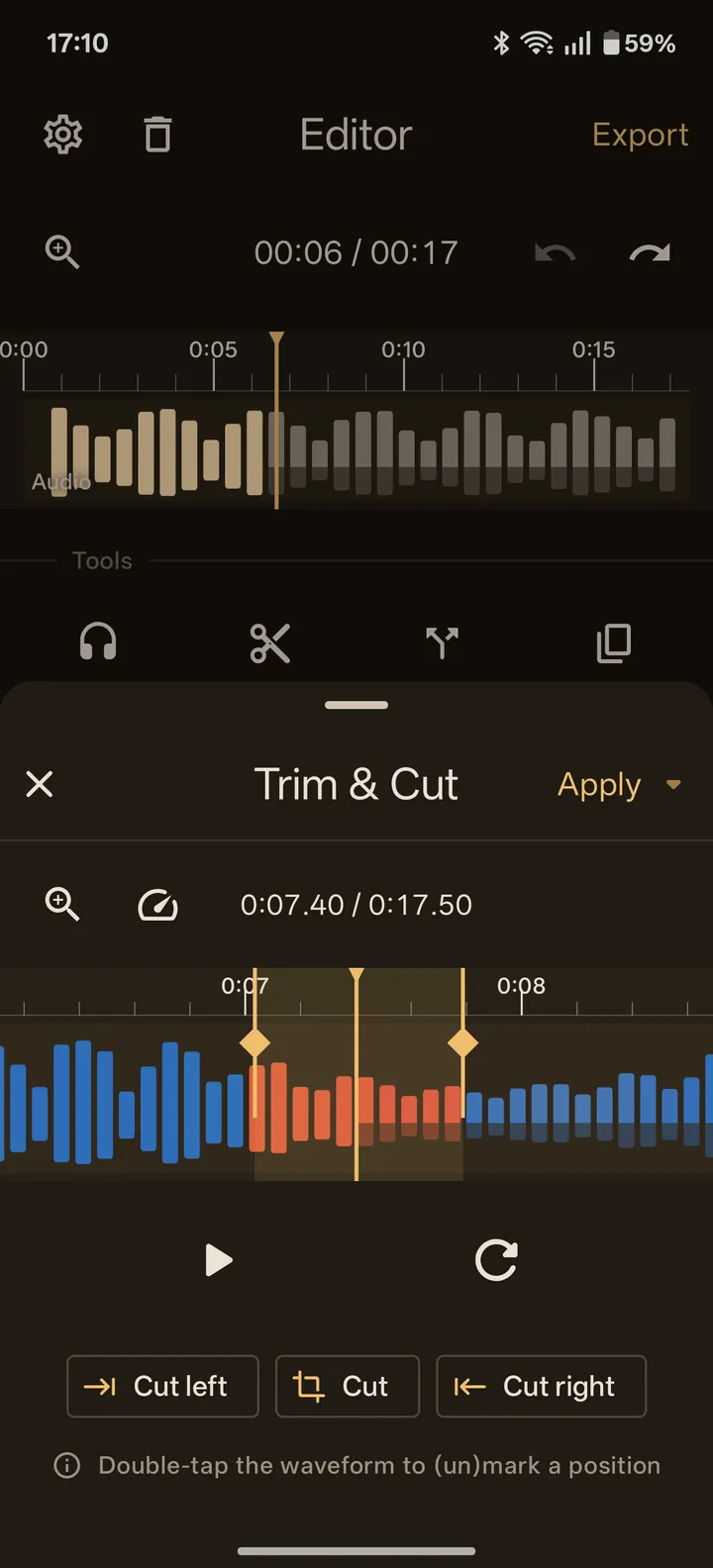
Trim & Cut removes parts of a clip right on its waveform. Double-tap the waveform to mark a position; the marks divide the clip into sections. Cut removes the section the playhead is in. Cut left and Cut right remove the nearest section on that side. A removed section shrinks to a seam with a restore button, so one tap brings it back, even after you close and reopen the tool.
Reach for it when you want to trim the start or end, or take a cough, a click or a mistake out of the middle.
- Preview speed (the gauge icon) slows playback inside the tool so you can find the exact spot. It never changes the clip.
- The waveform colors by spectral prominence here by default, so a word buried in noise shows up by eye and you can drop the mark where it starts.
Split
Split turns one clip into several clips. Tap Split to split at the playhead. Touch and hold it to open Split into sections: double-tap to mark as many split points as you need, and a badge shows how many clips you will get. Focus plays one piece on its own, Delete drops a piece you don't want, and Restore brings it back. All pieces apply as one undo step. Splitting does not re-render any audio.
Reach for it when a long recording holds several takes, or when you want to move or process part of a clip separately.
Join
Join merges a clip with its neighbor on the same lane into one clip. Tap Join to join the clip on the left; touch and hold to join the one on the right. If the two clips carry different effect settings, ZEEP asks you to commit both first and offers Commit and join in one step.
Reach for it after Split, or to combine two recordings into one clip.
Arrange clips
Once a session has more than one clip, the Arrange clips section opens under the tools:
- Move: drag the clip along its lane or onto another lane, with a live preview of where it will land. Touching and holding a clip on the timeline does the same.
- Join: see above.
- Mute: silences a clip without removing it.
- Delete: removes the clip.
Duplicate and Reverse
Duplicate copies the selected clip; touch and hold it to put the copy on a new lane. Reverse plays the clip backwards, and tapping it again turns it back.
Focus
Focus opens the selected clip on its own panel, with its own timeline and playhead, so you can work on one clip without the rest of the session around it.
Commit
Commit bakes a clip's live effects into its audio. Reach for it in three cases: two settings can't apply to the same clip at once (a changed Speed and Keep natural sound), playback warns that there are too many live effects, or you want to apply Speed again on top of itself. Commit changes the clip in place; it does not create a new lane.
Denoise
Denoise keeps the voice and turns everything else down. It runs DeepFilterNet, a machine-learning model trained on speech, entirely on your phone.
Reach for it when one voice sits over steady noise: a fan, a fridge, air conditioning, traffic, hiss.
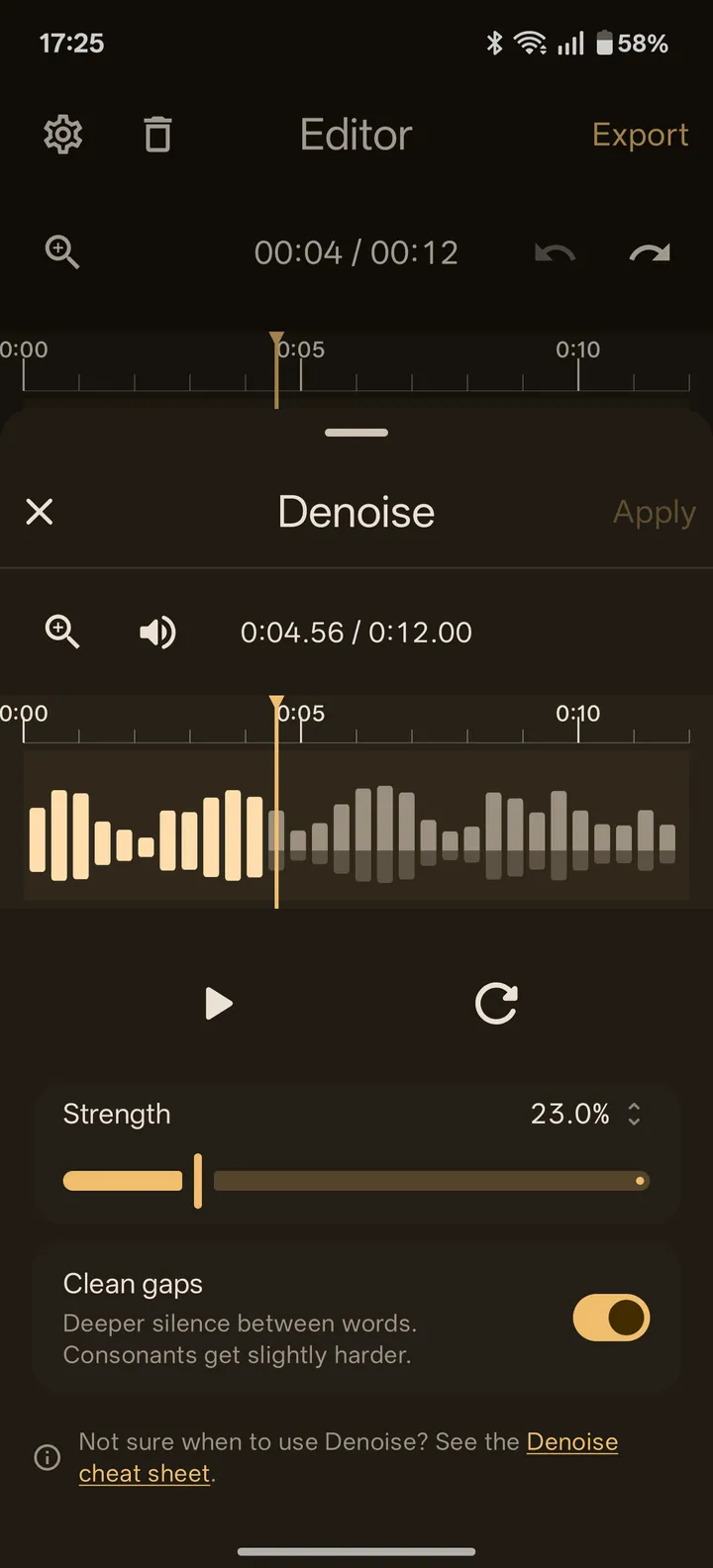
- Strength goes from 0 to 100%. If the voice sounds watery or robotic, lower it.
- Clean gaps (on by default) makes the silence between words deeper. Consonants get slightly harder; if words sound clipped, turn it off.
- A preview volume control (the speaker icon) turns the preview up so you can judge quiet parts. It is never written to the clip.
- Run Denoise first, before Equalizer, Compress or Volume. They make leftover noise louder.
What it does not do: music and sound effects are not a voice, so Denoise damages them; use the Equalizer's Hiss, Hum or Rumble picks instead. Echo and reverb are part of the voice, so they stay. Clicks and pops are too short to count as noise; cut them out with Trim & Cut.
Strip Silence
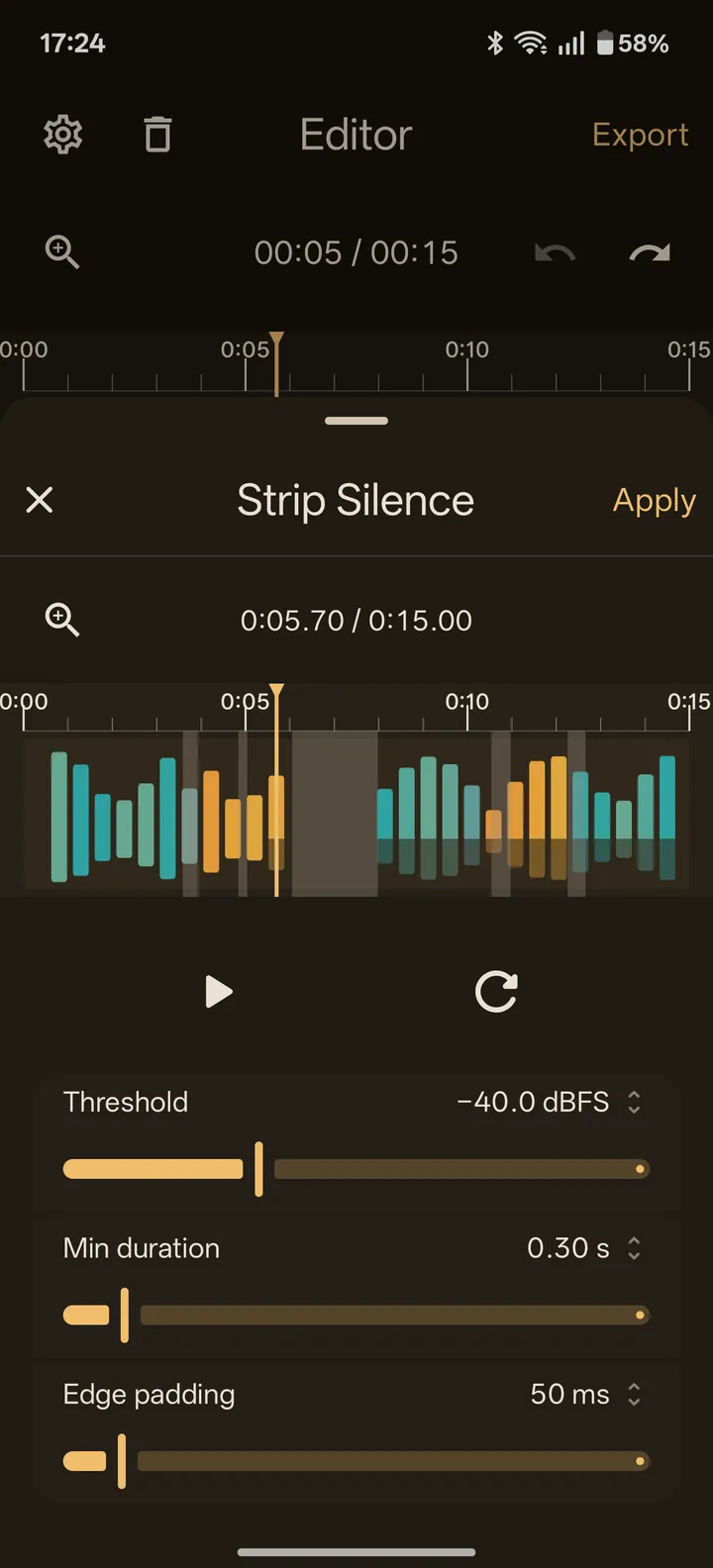
Strip Silence finds every silent stretch in a clip and removes it. The stretches it will remove show as shaded areas on the waveform before you apply.
Reach for it to tighten a voice recording with long pauses.
- Threshold: -60 to 0 dBFS, default -40. Anything quieter counts as silence.
- Min duration: 0.1 to 2 s. Shorter pauses are left alone, so normal breathing room stays.
- Edge padding: 0 to 500 ms of quiet kept on each side of what remains, so words don't start abruptly.
Equalizer
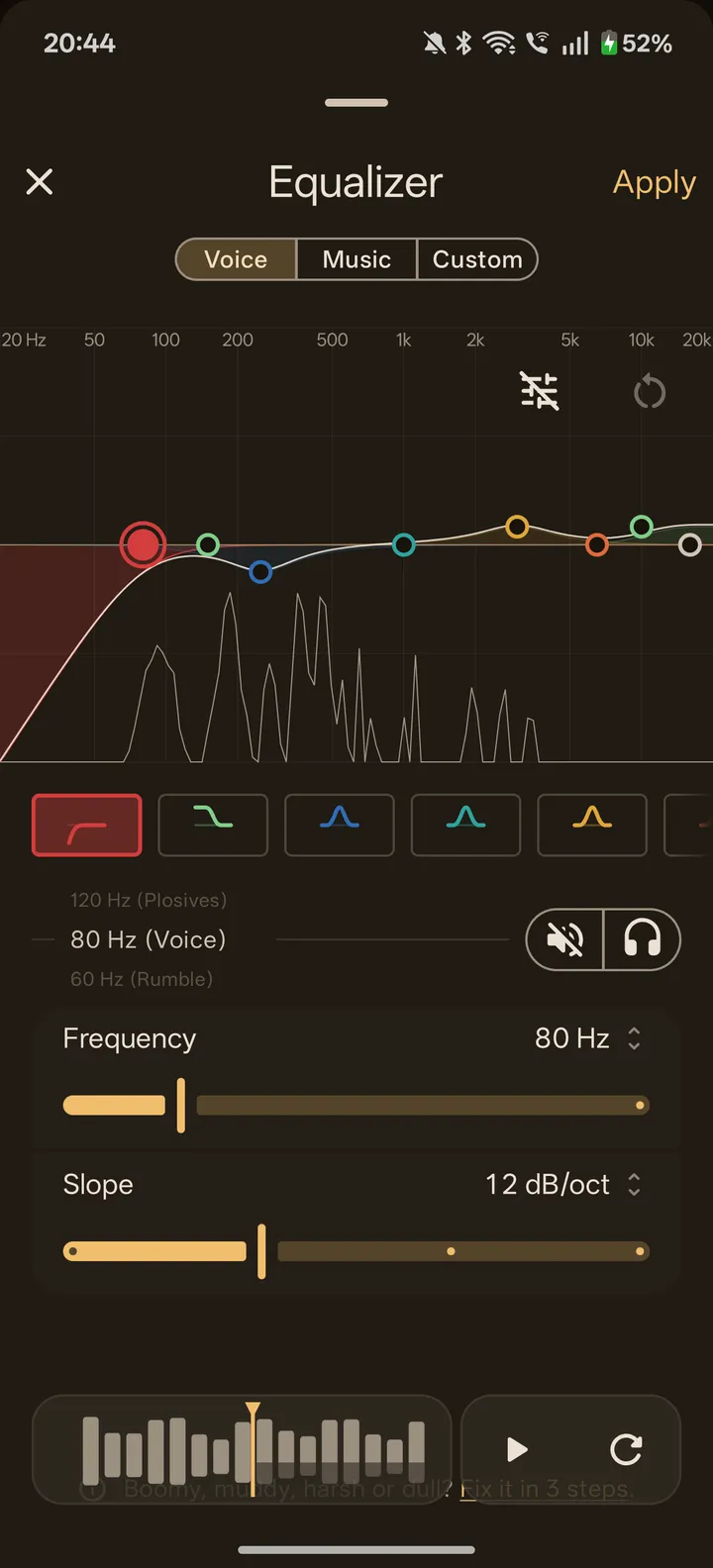
The Equalizer is a volume control for one part of the sound: turn down what bothers you, lift what's missing. It is a parametric EQ with eight bands (high pass, low shelf, four bells, high shelf, low pass), drawn on a graph over a live analyzer.
Reach for it when a recording sounds boomy, muddy, harsh, dull, or carries a steady low hum.
- Start from Voice or Music; Custom starts flat.
- The white line is the live analyzer. It shows what's in your sound right now, and peaks show where a problem probably lives.
- Quick picks sit on each band's wheel: Hum (EU) at 50 Hz and Hum (US) at 60 Hz for mains hum, Rumble, Plosives, Mud, Boxy, Nasal, Harsh, Sibilance and Hiss to cut, Bass, Warmth, Presence and Air to lift.
- Drag a band on the graph or use its sliders: frequency 20 Hz to 20 kHz, up to 24 dB of boost or cut, Width (Q) 0.3 to 10, and high or low pass slopes of 6, 12, 24 or 48 dB per octave.
- The headphones icon plays only that band, so you can hear what it holds. You can also mute a band, and the bypass icon on the graph compares with the EQ off.
- A mini timeline under the graph plays the clip while you tune.
Two habits from the in-app cheat sheet: cut before you boost, and keep moves small. 2 to 3 dB is a real change.
Compress
Compress turns the loud parts down for you, automatically, so quiet and loud moments sit closer together. How fast it reacts decides what you get: a steadier level, or more punch.
Reach for it when talking goes quiet, then loud, when a few sudden peaks jump out, or when drums sound soft.
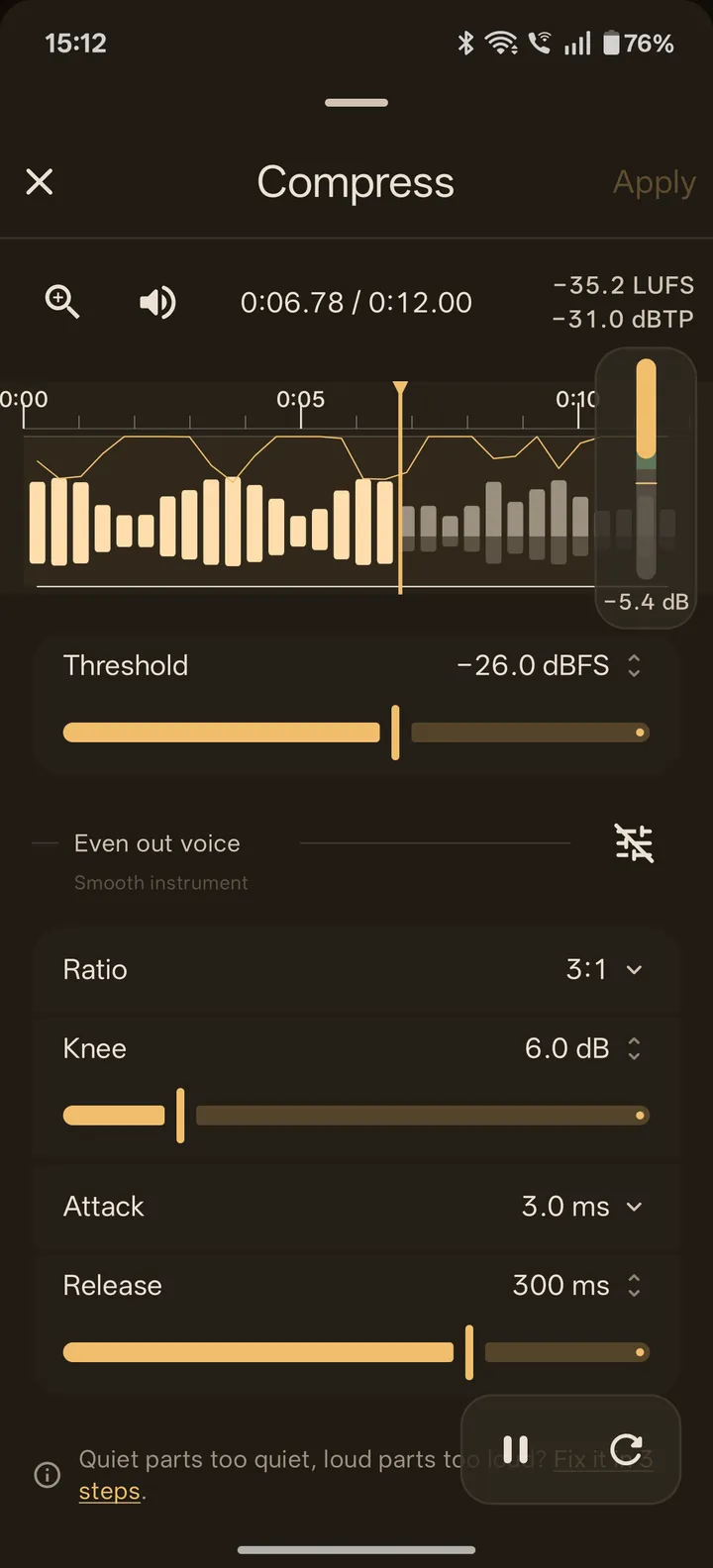
- Presets: Even out voice (the default), Smooth instrument, Punchy drums, Tame peaks, Glue the mix. Moving a knob off a preset shows Custom. Changing the preset never moves your Threshold.
- Five knobs: Threshold in dBFS (all the way right is Off), Ratio on four stops (2:1, 3:1, 4:1, 8:1), Knee 0 to 30 dB, Attack 0.1 to 100 ms, Release 20 ms to 1 s.
- The gain reduction meter sits at the right edge of the waveform and shows how much Compress is turning the sound down right now. Drag Threshold until the meter stays in the green zone, 2 to 6 dB, on the loud parts.
- Threshold opens at a value estimated from your recording, aimed at the middle of the green zone, and never moves by itself after that.
- Bypass compares with compression off, and the preview volume (up to +24 dB) lets you judge the quiet parts without changing the clip.
- Compress adds no hidden make-up gain. The clip gets quieter; turn Volume back up afterwards.
What it does not do: if a voice dips whenever something loud plays in the same clip, Compress can't tell the two apart.
Volume and Match
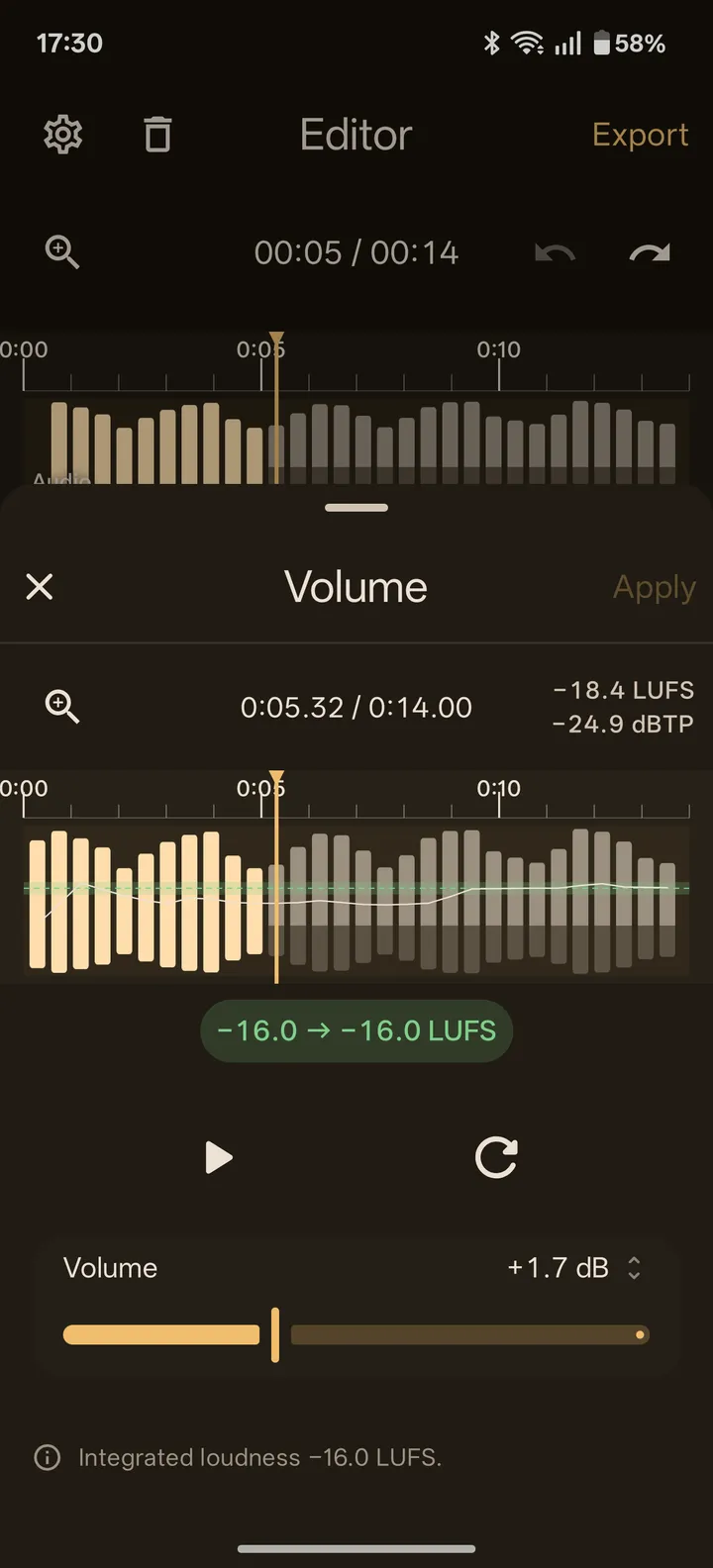
Volume sets a clip's level from -20 to +40 dB and reads its loudness while you work. The sheet shows the clip's integrated loudness in LUFS and its true peak in dBTP, draws a loudness line and your target band on the waveform, and offers Match: one tap sets the gain that brings the clip to your loudness target (-16 LUFS unless you change it in editor settings).
Reach for it to make clips sit at the same loudness, or to bring a quiet recording up.
- If a clip can't reach the target in one go, ZEEP tells you how far the best result is from it, and you tap Match again to keep adjusting.
- The Volume tile shows the gain and a green or orange dot for whether the clip is on target.
- Fade sits next to it: a linear fade in and fade out of up to 5 s each, shorter on very short clips.
Speed
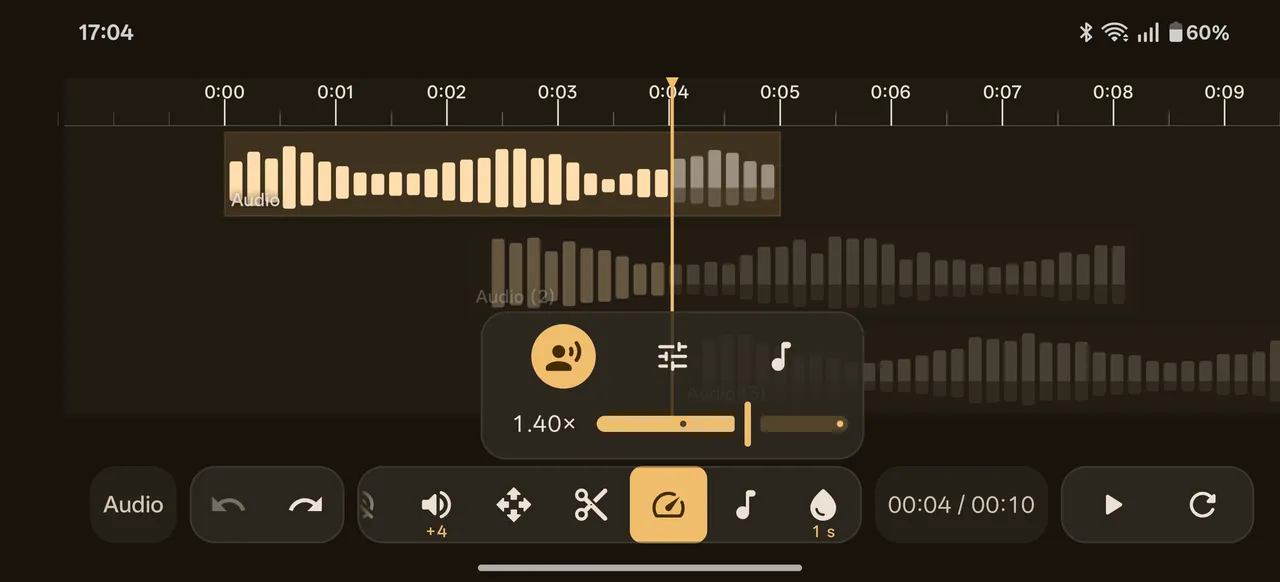
Speed changes tempo from 0.5× to 2× without changing pitch, and you hear it as you drag. Pick the engine mode for your material: Voice (PICOLA) keeps speech clear, Mixed (WSOLA) keeps rhythm tight for beats or voice over music, Music (Phase Vocoder) keeps notes smooth.
Pitch
Pitch shifts a clip up or down by up to 12 semitones without changing its length, live as you drag. Keep natural sound preserves formants, so a shifted voice or instrument keeps its character instead of sounding thinner or deeper. It can't apply on the same clip as a changed Speed; ZEEP asks you to commit the clip first.
What happens without a knob
- Edit-seam de-click. Every cut plays through clean: an engine-level fade removes the click at edit seams. It is always on.
- True-peak limiter. The output runs through a limiter with a -1 dBTP ceiling, which keeps loud exports from clipping.
- Clipping flags. Clipped, overloaded audio is marked right on the waveform, and ZEEP warns you when you import or record it. It flags the damage; it does not repair it.
- Spectral colors. Waveform bars can color by spectral prominence: blue for bass and rumble, teal for low mids, amber where speech sits, red for treble such as hiss. Steady background (wind, room tone, hiss) stays gray however loud it is, and a sound that rises above it lights up even when it's quieter than the background. Choose Off, In tools (the default) or Everywhere in editor settings.
- Exact values with one finger. Tap any slider's readout for a value wheel: flick to coast, touch to stop.
- History you can read. Touch and hold undo or redo to see every step by name, such as "Compress -20 dBFS, 3:1".
- Landscape on phones. Rotate the phone and the timeline takes the whole screen, with a strip of quick tools: Speed, Pitch, Volume, Fade, Trim, Move, Split, Join, Duplicate, Delete and Mute.
Cheat sheets in the app
Equalizer, Denoise and Compress each have a cheat sheet one tap from their controls. The link names the problem it solves: "Boomy, muddy, harsh or dull? Fix it in 3 steps." The Equalizer and Compress sheets have three tabs (Quick start, then Frequency map or Presets, then Knobs).